HTML BASICS
(WEB DEVELOPMENT)
Lab Objective: understand
the utility of forms on Web pages, various components used in a form and build
a simple interactive form.
Interactive
Forms
Without forms a website are
“read-only”, it just provides information to the user. Forms enable the user to
provide information to the web site. For example the user can:
- Perform searches on web site
- Give comments
- Ask for info that is not available on the website
- Place order for goods and services
Interactive forms can be simple
or very complex. They can fill a whole page or just a single line. They can contain
a single element or many and are placed between the <body> and
</body> tags of a web page. Interactive forms are GUI based and may
contain:
- Text fields
- Check boxes
- Buttons
- Scrollable lists
The HTML form tag
<form>
and </form> is to
create a form in your web page. All the input elements should go between the <form> and </form> tags.
Tags used
in the form
·
<form>
Name= “name of form”
Method= “get”
or “post”
Action= “URL” (The HTML form action attribute points to the URL to which the form
submission is sent. This will normally be a server side script written in a
scripting language)
</form>
·
Single
line text input field
<input
Type= “text”
Name= “name”
Size= “width in
characters”
maxlength= “limit
in characters”
value= “initial
default value”
>
·
Password
input field
<input
Type= “hidden”
Name= “name”
Value= “value”
>
·
Checkbox
input element
<input
Type= “checkbox”
Name= “name”
Checked
Value= “value”
>
·
Radio
button input element
<input
Type= “radio”
Name= “name”
Checked
Value= “selected
value”
>text1
·
File
upload input element
<input
Name= “name”
Value= “name of
selected file”
Encrypt= “file
encoding type”
>
·
Reset
button input element
<input
Type= “reset”
Value= “button
label”
>
·
Submit
button input
<input
Type= “submit”
Name= “name”
Value= “value”
>
Eight possible
values for the “type” attribute of <input> tag:
1.
text
2.
password
3.
hidden
4.
checkbox
5.
radio
6.
file
7.
reset
8.
submit
Multi-line
text input area
<TEXTAREA
Name= “area name”
Cols= “width”
Rows= “lines”
>initial
default value
</TEXTAREA>
Select from
a (Drop down) List
<SELECT
Name= “name”
Size= “number of displayed
choices”
>
<OPTION value=
“value1”>text1
<OPTION value= “value2”
selected>text2
<OPTION value= “value3”>text3
</SELECT>
Lab Tasks
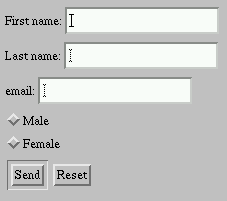
Write HTML codes for snapshots given below:

No comments:
Post a Comment